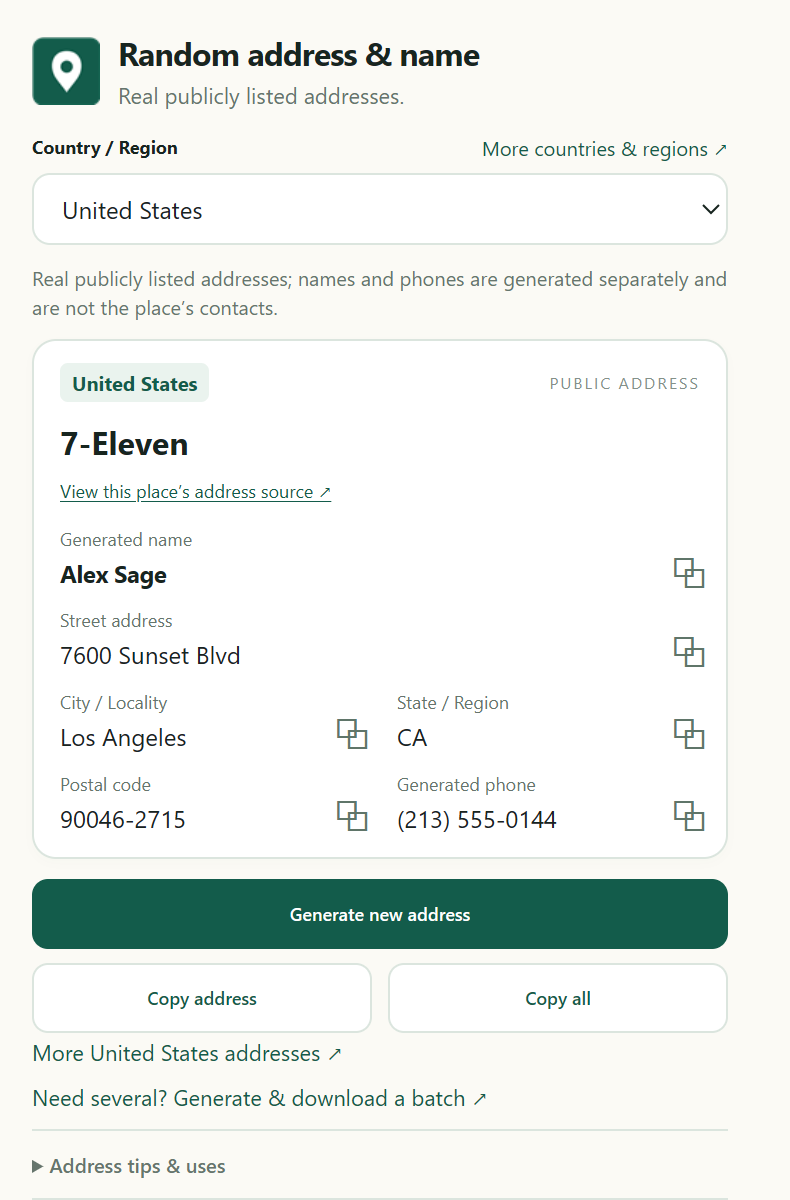
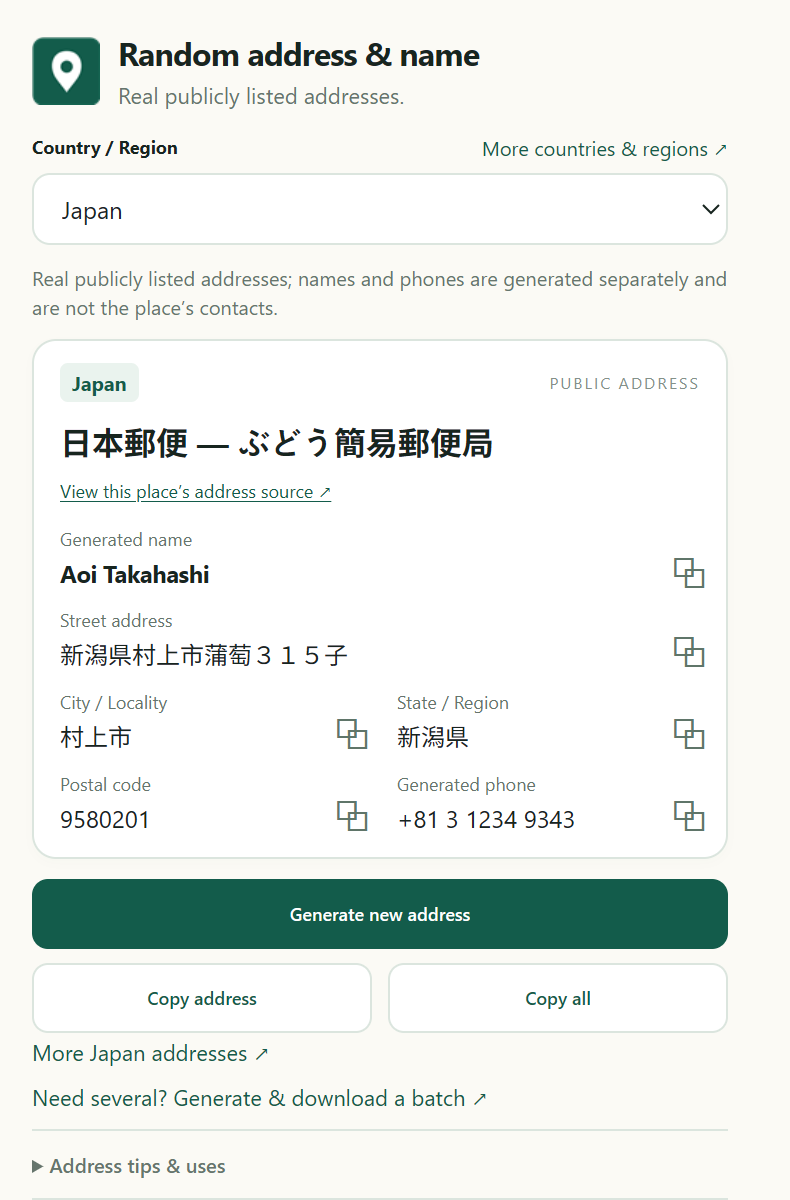
Keep names, addresses and phone fields close at hand with the random address generator Chrome extension. Choose one of eight countries, generate a record, then copy the fields you need without leaving your current tab.
Chrome Web Store: version 0.1.2. Manual download: version 0.1.3. These versions use different address data; see the comparison below.
Generate, copy and keep your last record
Choose a country. Select a country or let the extension choose randomly from the eight supported destinations.
Copy what you need. Copy a name, street, city, region, postal code or phone field. Copy address keeps the address together; Copy all includes the extra profile fields.
Pick up where you left off. Your country choice and last record are saved locally. Use Clear saved data in the popup to start fresh.
The interface is in English. After installation, pin the extension from Chrome’s Extensions menu, open its toolbar icon and choose Generate new address. Copy fields and paste them yourself into your document or form.
Eight countries in the extension
Need city filters, more countries or several records at once? Open the linked country tools or the international address generator. Batch downloads are available on the website.
Install the random address generator Chrome extension
From desktop Chrome, follow these steps to add its icon to your toolbar:
Open the Chrome Web Store listing using the install button above.
Choose Add to Chrome.
Review Chrome’s prompt and choose Add extension.
Open Chrome’s Extensions menu and pin Random Address & Name Generator to your toolbar.
Choose an installation version
Chrome Web Store · 0.1.2
The store version generates synthetic address samples, along with names and phone fields. These addresses are examples and should not be treated as real places or delivery destinations.
Choose the store installation for Chrome’s usual installation and update process.
This version selects real addresses published by businesses and public institutions, keeping each address together with its source link. Names and phones are generated separately and are not contacts for those places. Delivery has not been checked.
The list is finite, so addresses can repeat. Read the public address sources and limitations for this version. Manual installation uses Chrome’s developer mode and requires manual updates.
The ZIP download contains version 0.1.3, including the extension and its source acknowledgements. It is a separate installation path from the Chrome Web Store.
Download version 0.1.3 and show installation steps
Download and unzip the file into a folder you will keep on your computer.
In desktop Chrome, open chrome://extensions and turn on Developer mode.
Choose Load unpacked and select the unzipped folder containing manifest.json.
Pin the extension in Chrome’s Extensions menu, then open its toolbar icon to generate and copy a record.
Updating a manual installation: download a newer ZIP when available, replace the files in the same folder, then choose Reload for this extension at chrome://extensions. Keep that folder in place. The downloaded installation does not receive Chrome Web Store updates.
Help with the Chrome extension
Can I generate a batch or choose a city?
The random address generator Chrome extension creates one record at a time. Use the US bulk address generator or a supported country’s website tool to filter locations and download a batch.
Which installation should I choose?
The Chrome Web Store is the usual installation route. Choose manual 0.1.3 if you want its publicly listed address data and are comfortable installing and updating an unpacked extension.